Setup Notes I
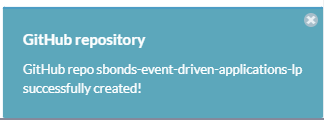
The GitHub repo creation process responds that I should check for an email from github. The first two tries, I did not get an email. In the past I've waited days between these attempts, but I know better now. I reloaded the web page and retried the submission twice more and on the third time I got a near-instant response with this notification:
There's something wrong on the Manning side with how this gets set up where it fails silently.
Suggestion summary
- Clarify that we should install the SAM CLI before proceeding
- Define what it means for our SAM CLI installation to be successful
- Describe what permissions we're going to need so appropriate users can be created
- Will we be doing everything interactively where user-level permissions are fine?
- Will we be automating part of our work where some level of application credential will be needed?
- Ideally, create a method to test that those users have the permissions needed to succeed later on
Useful AWS quirks learned
- AWS CLI requires frequent relogin even with SSO
- Watch for the need to feed a profile into SAM commands
SAM CLI
This is mentioned as an "external dependency" but we're not explicitly told this needs to be set up.
I'd suggest a simple test that we could run at this point to verify that our CLI environment is working which would verify that our setup is complete.
Based on reading ahead a small amount (but not so much that I spoil my "first read-through" experience) it seems clear that we were expected to set up AWS and the AWS Serverless Application Model CLI client at this point.
This has its own set of reasonably complex prerequisites for setting up access into AWS itself.
- Amazon: Installing the SAM CLI
- Amazon: Prerequisites for SAM CLI
- (Optional) Amazon: Hello World Serverless App
Prerequisites: Start from zero
I'm going to start from scratch to simulate the beginner experience.
- Step 1: Sign up for an AWS account
- Step 2: Create an IAM user account
- Step 3: Create an access key ID and secret access key
- Step 4: Install the AWS CLI
- Step 5: Use the AWS CLI to configure AWS credentials
Sign up for an AWS account
I'll create a new AWS account for my Manning-related work.
In an Incognito window, I went to https://portal.aws.amazon.com/billing/signup
- email:
sbonds+manning-aws@gmail.com(use a gmail alias to help this account stand out) - AWS account name
sbonds-manning
Complete the email verification and remaining sign-up
Create a budget
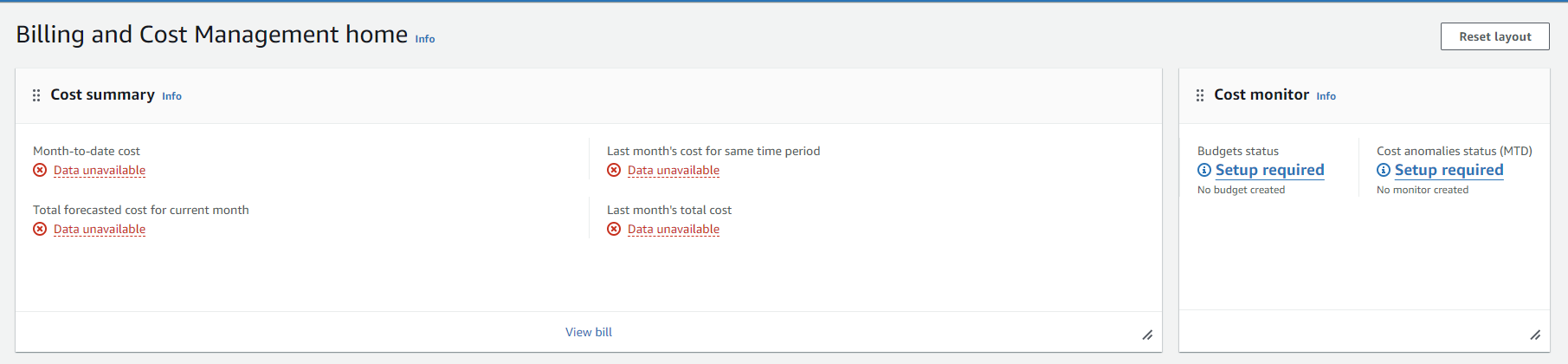
This isn't mentioned, but any time I'm paying cloud costs personally, I like to know before I get a gigantic bill.
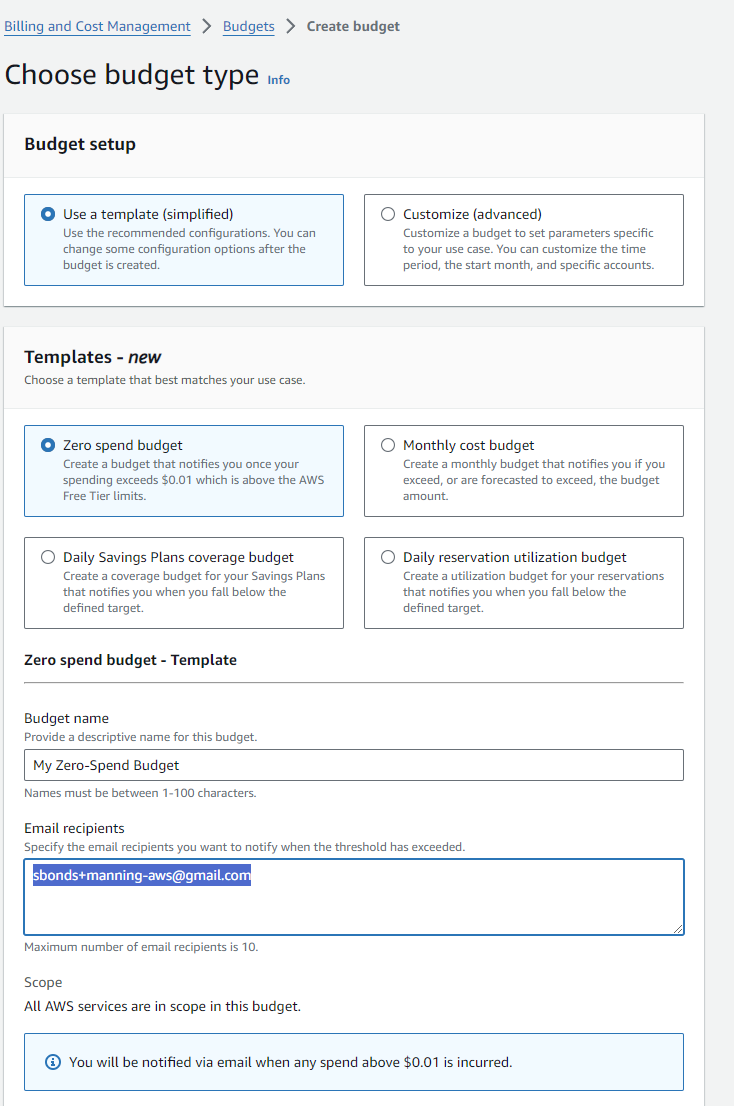
Hey, they have a template for zero spending, nice!
Create an IAM user account
Install IAM Identity Center
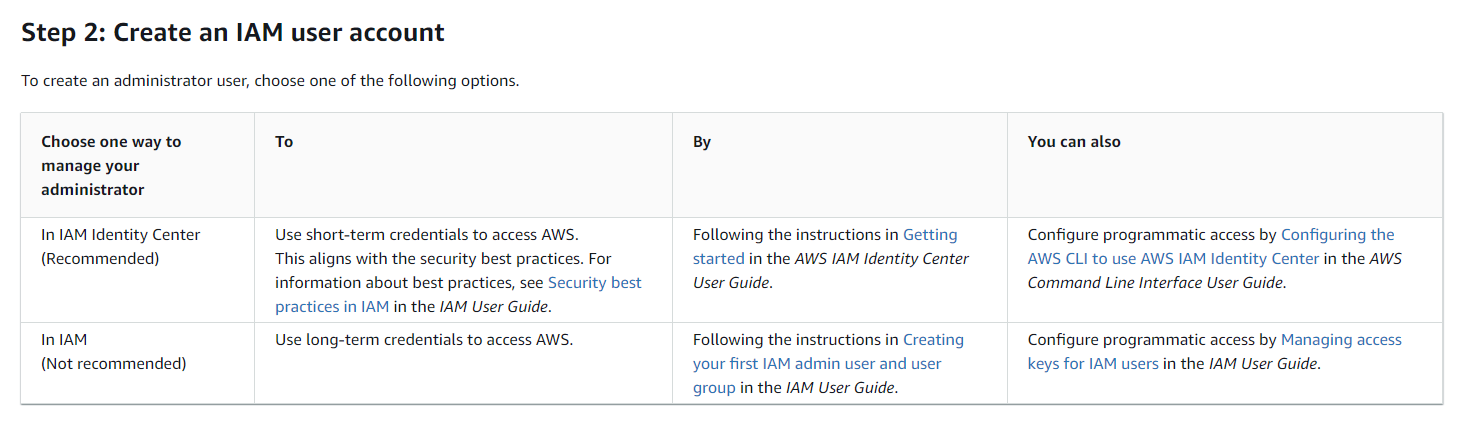
Evaluate: IAM Identity Center (recommented by AWS)
Basic info:
This looks like several layers of extra complexity which won't be necessary for a single-human-user test environment like I'm building here.
Follow this process: Amazon: Create an admin user
Seems like a good plan.
Go to https://console.aws.amazon.com/singlesignon in my AWS root user Incognito session.
Check the important question-- how much does this cost? From https://aws.amazon.com/iam/identity-center/faqs/:

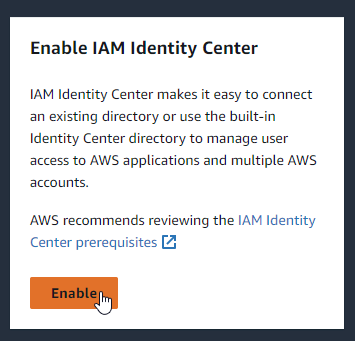
Enable it:
Config choice:
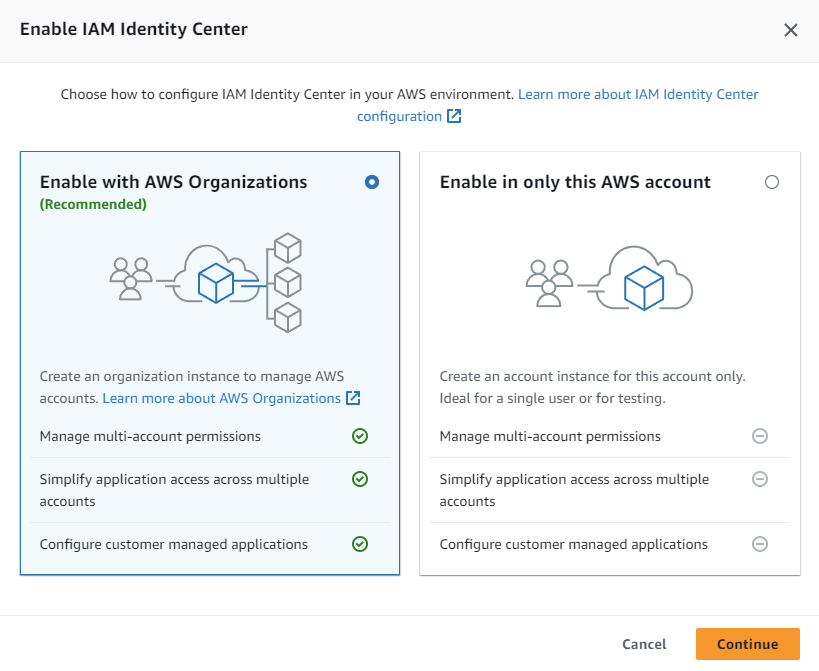
Since this is a single-user AWS account, the AWS Account option seems to make sense. On the other hand, I don't know what plans there might be which would require a feature not included. This type won't require any extra setup for users since they're isolated to this environment. That seems like what I want for this Manning-specific AWS account.
There's more!
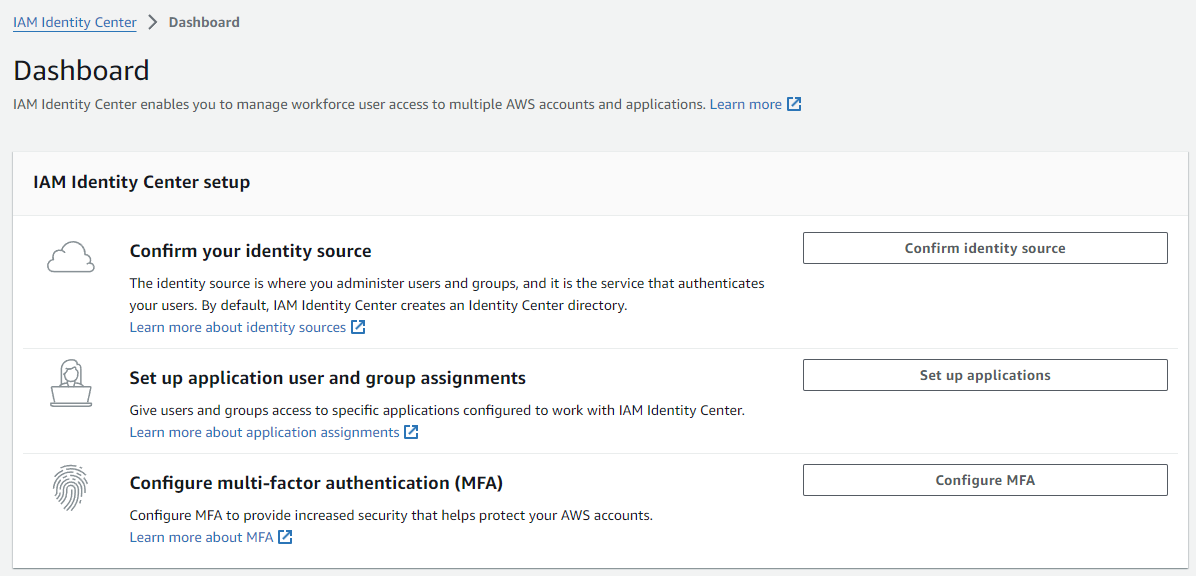
The default internal directory seems like a good choice for now:
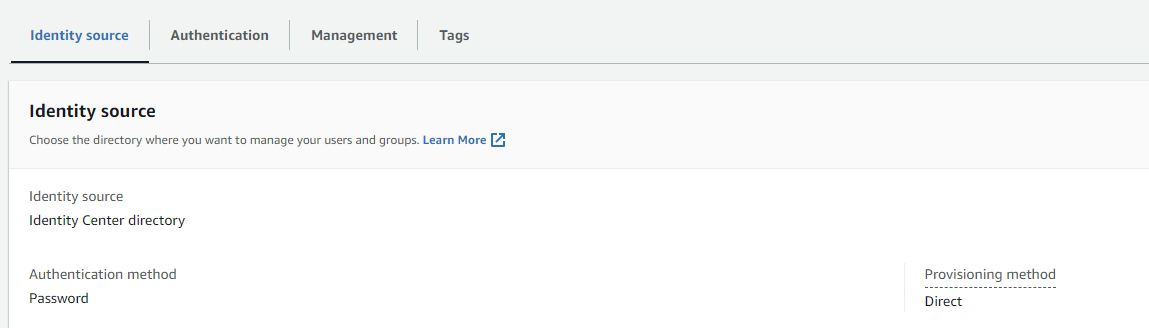
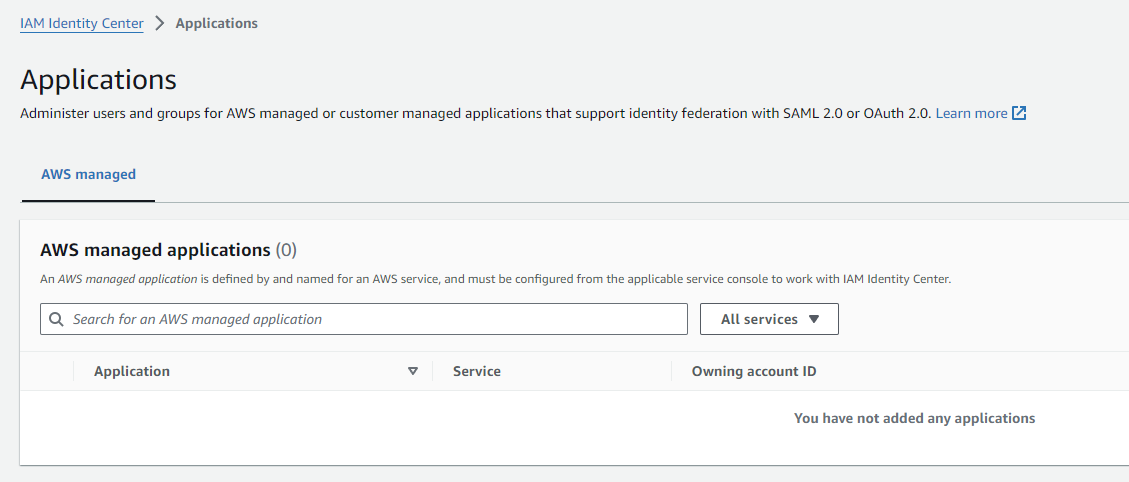
It's probably OK to leave out any applications at this point:
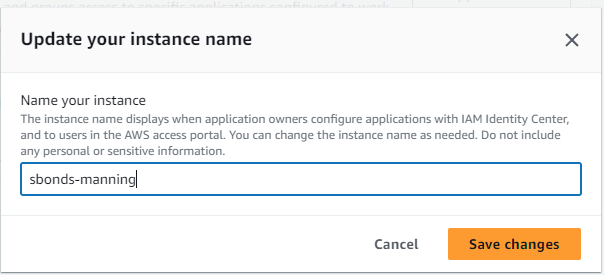
Change my instance name to "sbonds-manning":
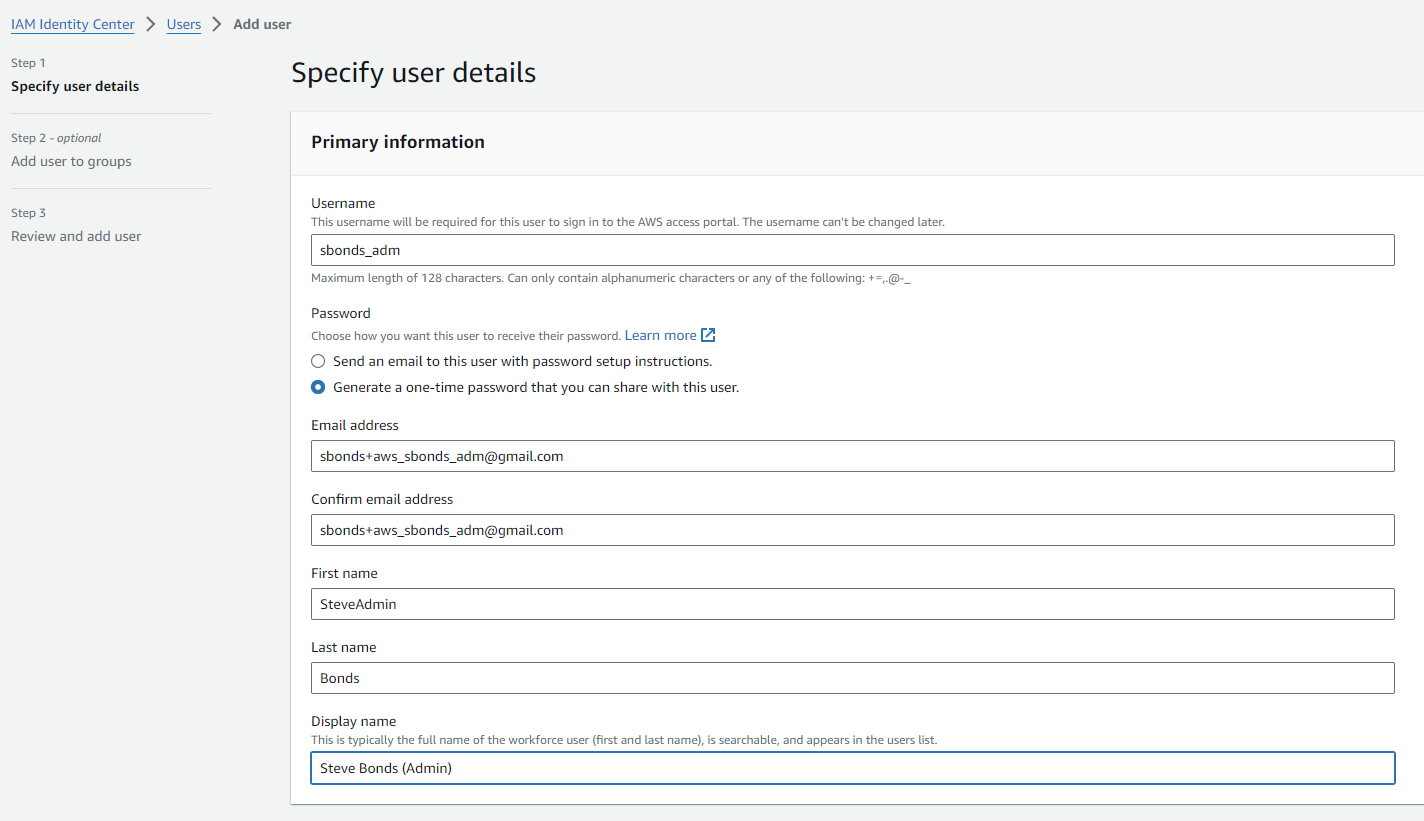
Create user who will be an administrative user
- Username: "sbonds_adm"
- Email. address: "sbonds+aws_sbonds_adm@gmail.com"
- First Name: SteveAdmin
- Last Name: Bonds
- Display Name: Steve Bonds (Admin)
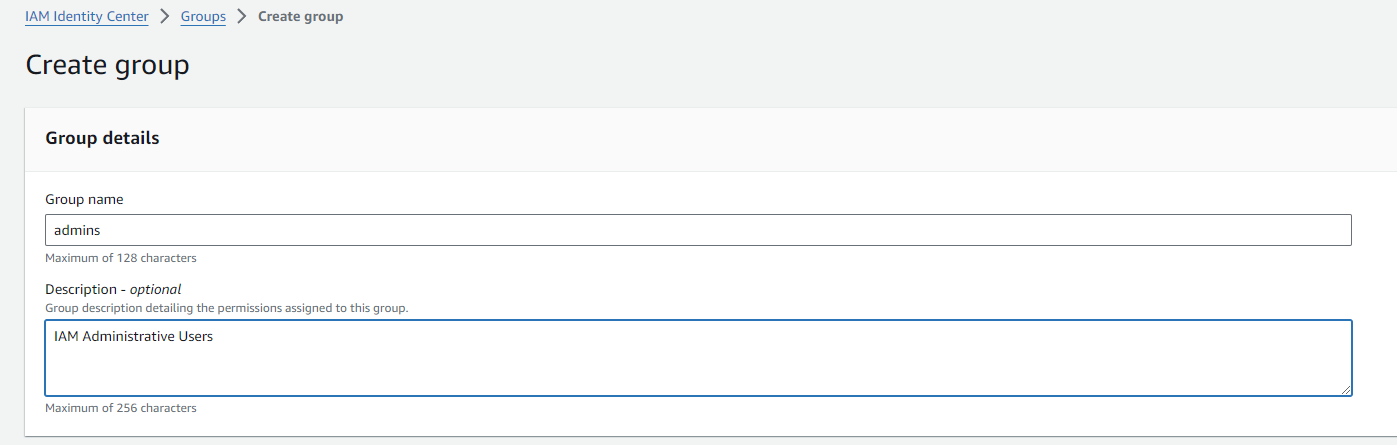
Create group of admins, because why not:
Go to my user creation tab and add the user to admins group after using the on-page refresh:
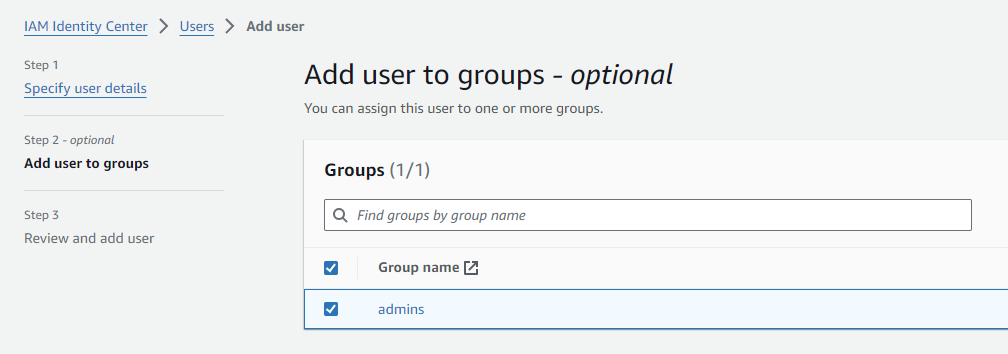
FAILED: Change the group to be an administrative group
From https://docs.aws.amazon.com/singlesignon/latest/userguide/quick-start-default-idc.html this step doesn't match what I see:
In the IAM Identity Center navigation pane, under Multi-account permissions, choose AWS accounts.
Maybe because I'm not using AWS Organizations? I'll move on and see what happens.
Log in using new user
Log in to that user in a separate profile's Incognito window so the cookies don't mix with the root user's session.
Works, but looks pretty empty.
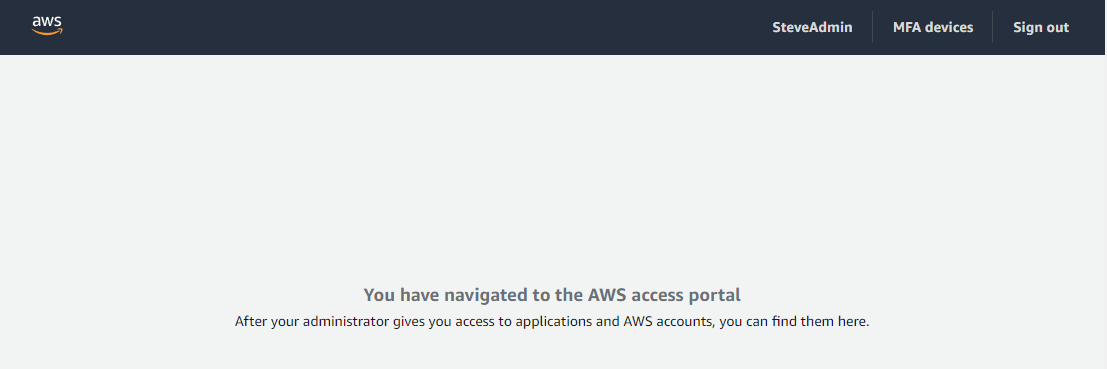
Do over?
Maybe I created a problem for the future (which has just arrived) by trying to keep it simple earlier. Try a do-over using an AWS Organization. Whoops.